

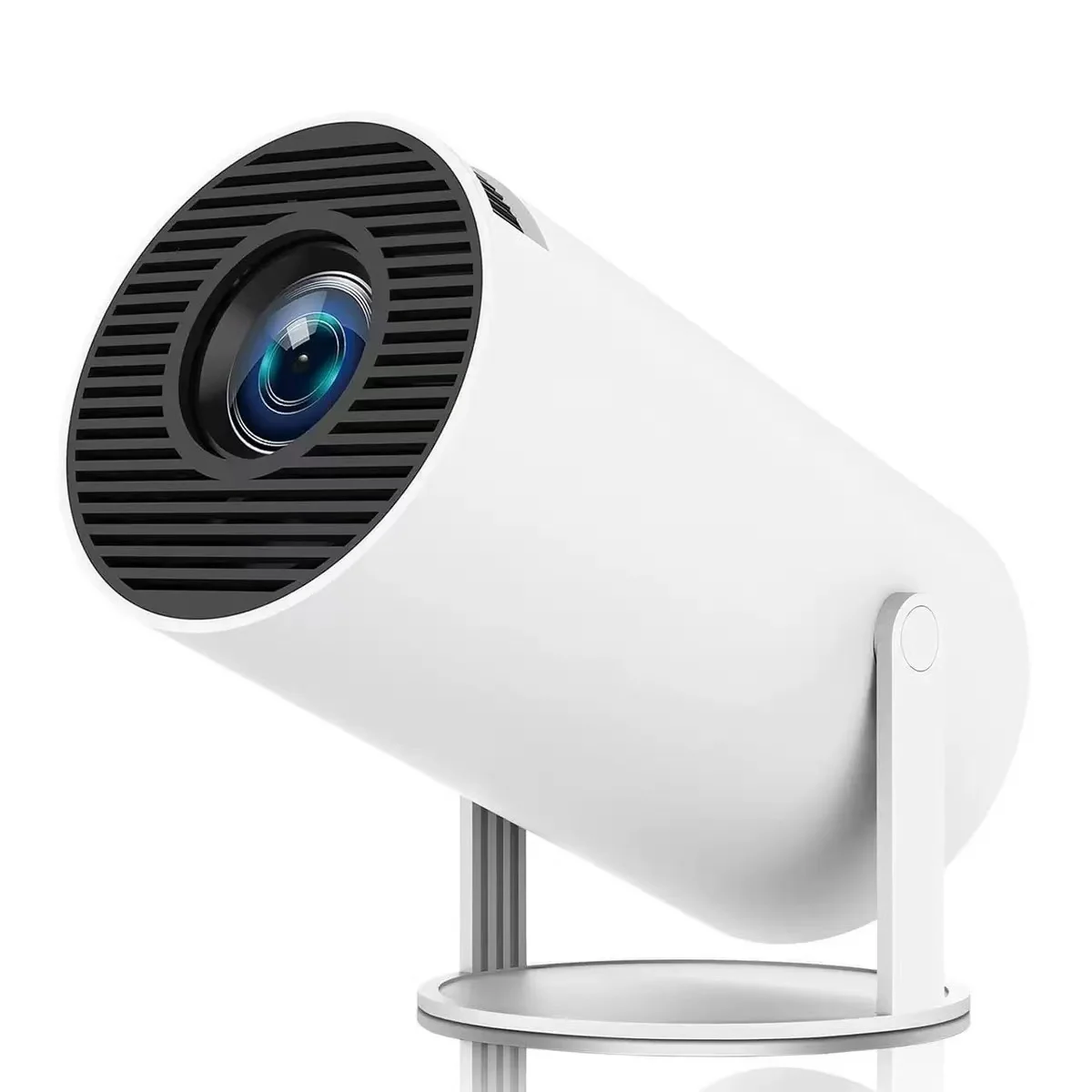
Projector HY300 Linux Dual Wifi6 290ANSI Allwinner H726 BT5.4 1080P 1280*720P Home Cinema Outdoor Projetor
HY300 / US Plug
$45.71
Sale price
$45.71
Regular price
$45.71
Skip to product information


Projector HY300 Linux Dual Wifi6 290ANSI Allwinner H726 BT5.4 1080P 1280*720P Home Cinema Outdoor Projetor
$45.71
Sale price
$45.71
Regular price
$45.71
Taxes included.
SPECIFICATIONS
Battery: No
Bluetooth-compatible: Yes
Brand Name: other
Built-in Speaker: Yes
Category: Projectors
Certification: CE
Choice: yes
Display Size: ≤13.5
Function: Video Playback
High-concerned chemical: None
Home Theater Projector: yes
Inbox adaptor: Yes
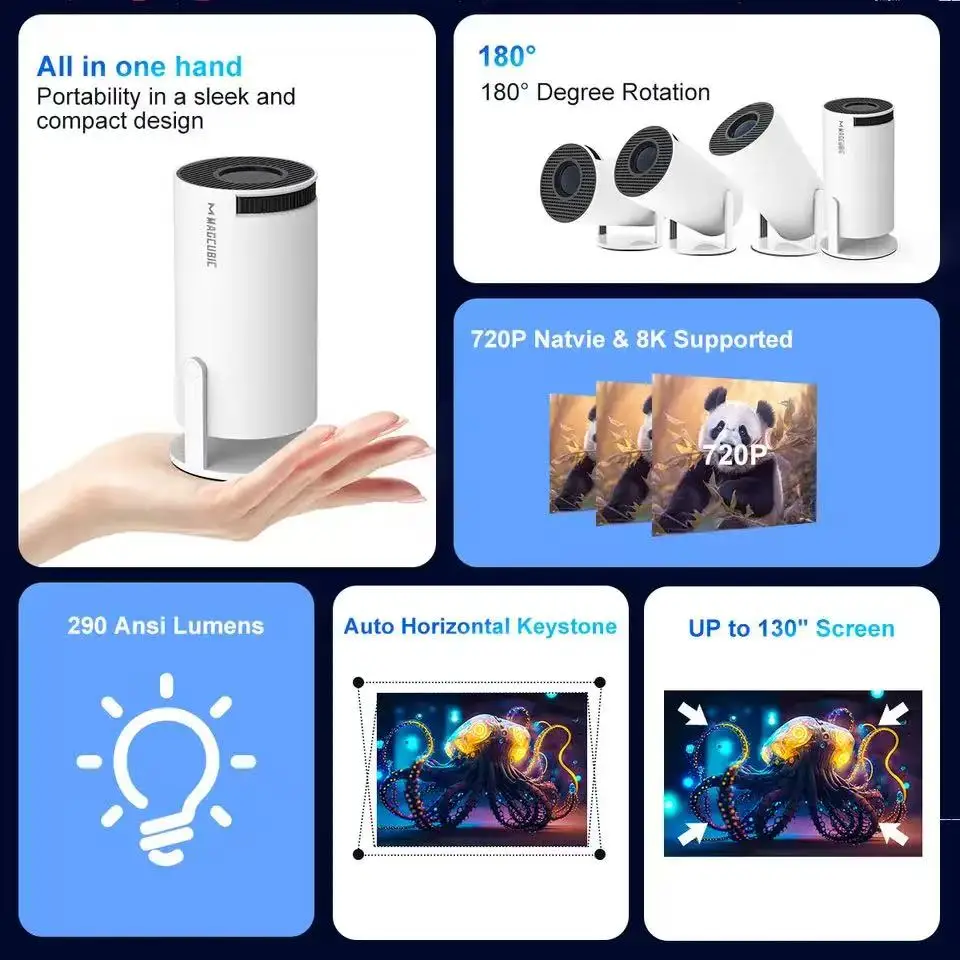
Keystone Correction: Manual Correction,Auto Correction
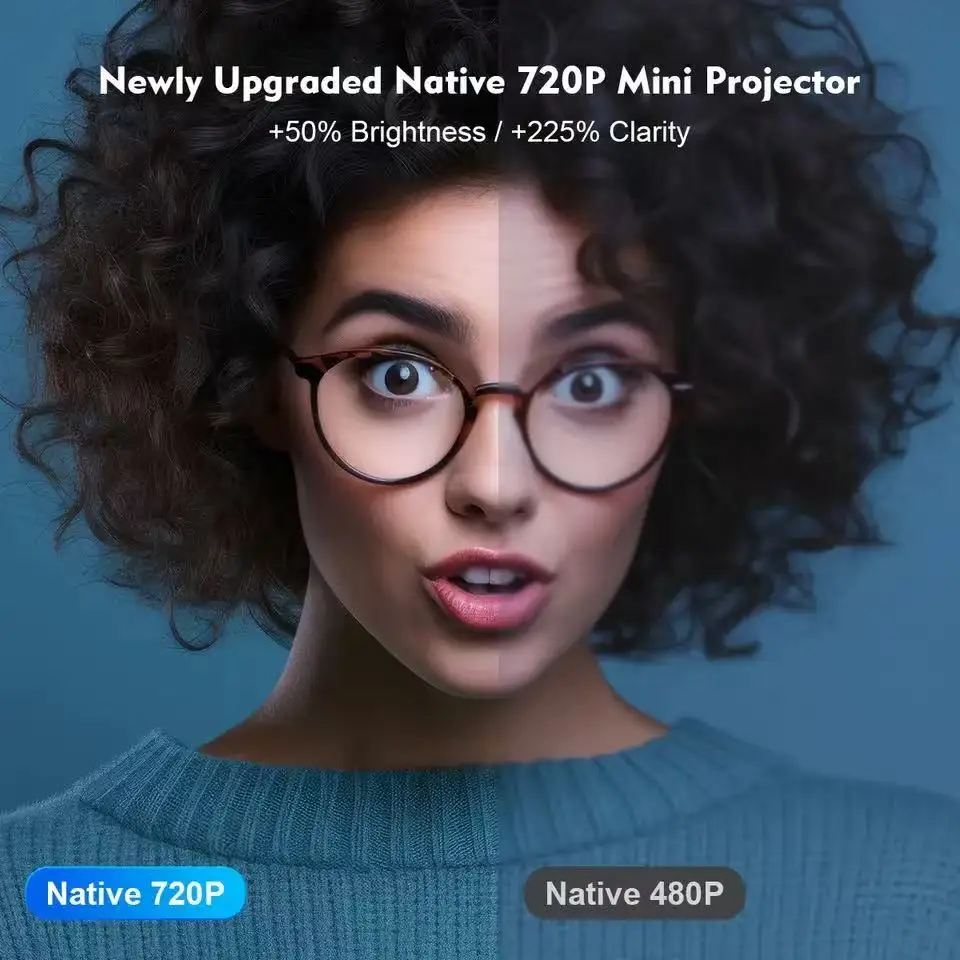
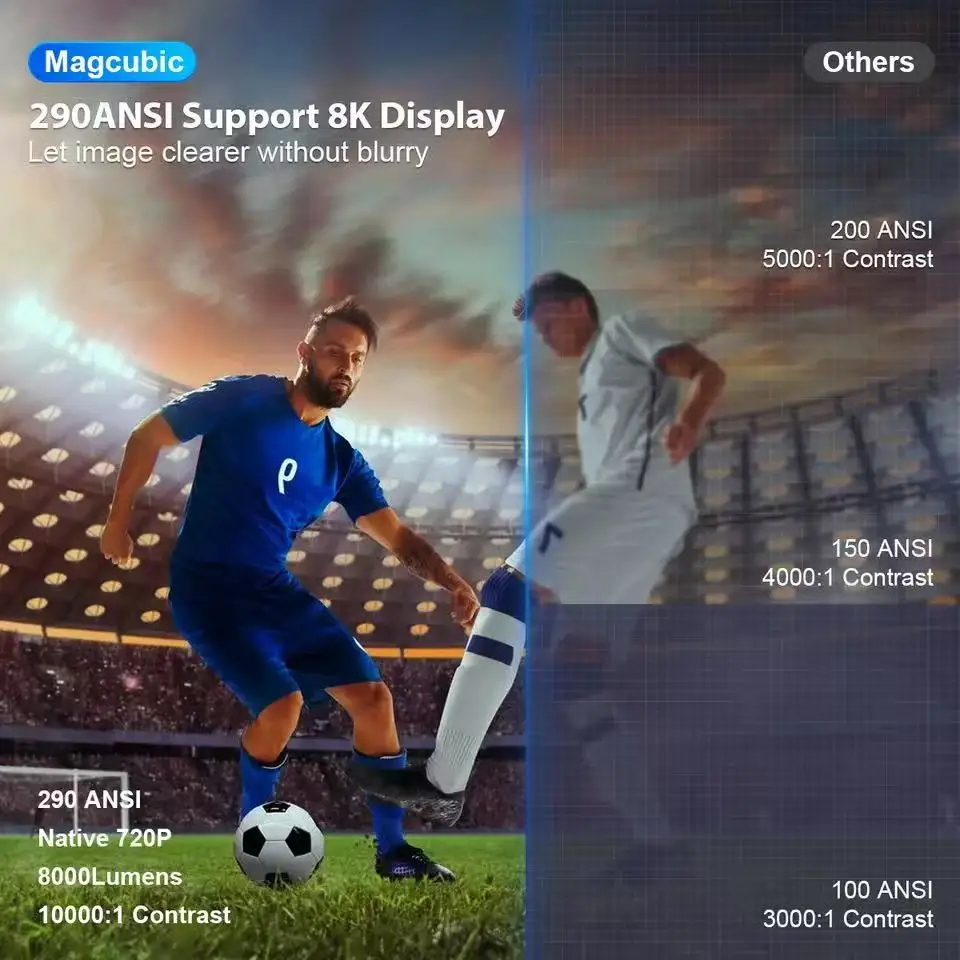
Optical Resolution: 1280x800dpi
Origin: Mainland China
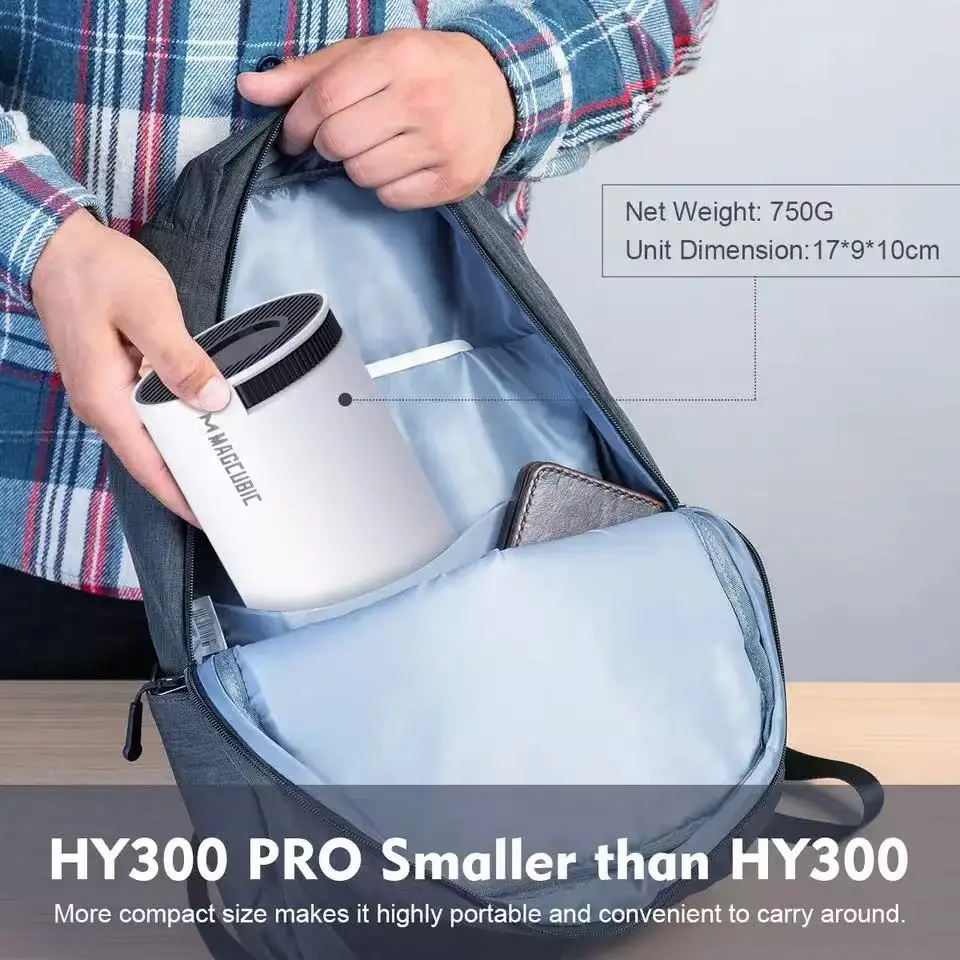
Portable: Yes
Power (W): 40W
Power Source: Ac,Ac
Projective Mode: T4
Remote controller included: No
Structure: Without display device
Type: Mini
Use: Entertainment Projector
Weight: 600g
Wireless Screen Mirroring between Android Phonesand Projectors:
>lfthere is WiFi at home:
1. Turn on the projector's WiFi, and connect to the
home WiFi.
2. Return the projectorto the home screen, then
enable Wireless Screen Mirroring.
3. Connect the Android phone to the same WiFi (notethe difference between 2.4G and 5G bands: the phone
must use the 2.4G WiFi band).
4. Enable screen mirroring on the phone, wait forthe
search to complete, find the projectornamed
PROJECTOR.and tap to connect.
>lfthere is no WiFi at home:
1. Turn on the projector's WiFi, but no need to connect
to any WiFi network.
2. Return the projector to the home screen,and enable"Wireless Screen Mirroring".
3. Enable screen mirroringon the phone, find theprojectornamed PROJECTOR, and tap to connect
Wired Screen Mirroring between Android Phones andProjectors:
1. Enable "Wired Screen" on the projector.2. Scan the OR code on the projector's interface withthe Android phone to install the required app.
3. Use the original data cable to connect the projector'sUSB port and the phone's Type-c port.
4.Select"Data Transfer" to start screen mirroring
DLNA Casting between Phones and Projectors:>lfthere is WiFi at home:
1. Turn on the projector's WiFi, and connect to thehome WiFi.
2. Connect the phone to the same WiFi (note thedifference between 2.4G and 5G bands: the phone mustuse the 2.4G WiFi band).3. Open a video on the phone,and tap the"TV" icon inthe upper right corner ofthe video (a compatible app ormobile web browser is required).4. Wait for the search to complete, find the projectornamed PROJECTOR,and tap to cast.
>lf there is no WiFi at home:
1. Turn on the phone's mobile hotspot.set aWiFinamewith English letters, and a password of 8 digits.2. Turn on the projector's WiFi, connect to the phone'shotspot,and enterthe password to establish theconnection.
3. Open a video on the phone,and tap the "Ty" icon inthe upper right corner ofthe video (a compatible app ormobile web browser is required).
4. Enable screen mirroringon the phone, find theprojectornamed PROJECTOR, and tap to cast.
Wireless Screen Mirroring between iPhones andProjectors:
1. Turn on the projector's WiFi, but no need to connectto anyWiFinetwork.
2. Return the projectorto the home screen, and enable"'Wireless Screen Mirroring".
3. Enable AirPlay or screen mirroring on the iPhone,find the projectornamed PROJECTOR, and tap toconnect.
Wired Screen Mirroring between iPhones andProjectors:
1. Enable ""Wired Screen" on the projector
2. Use the original data cable to connect the projector'sUSB port and the iPhone's Lightning port orType-C
port.3. Select "Trust" to start screen mirroring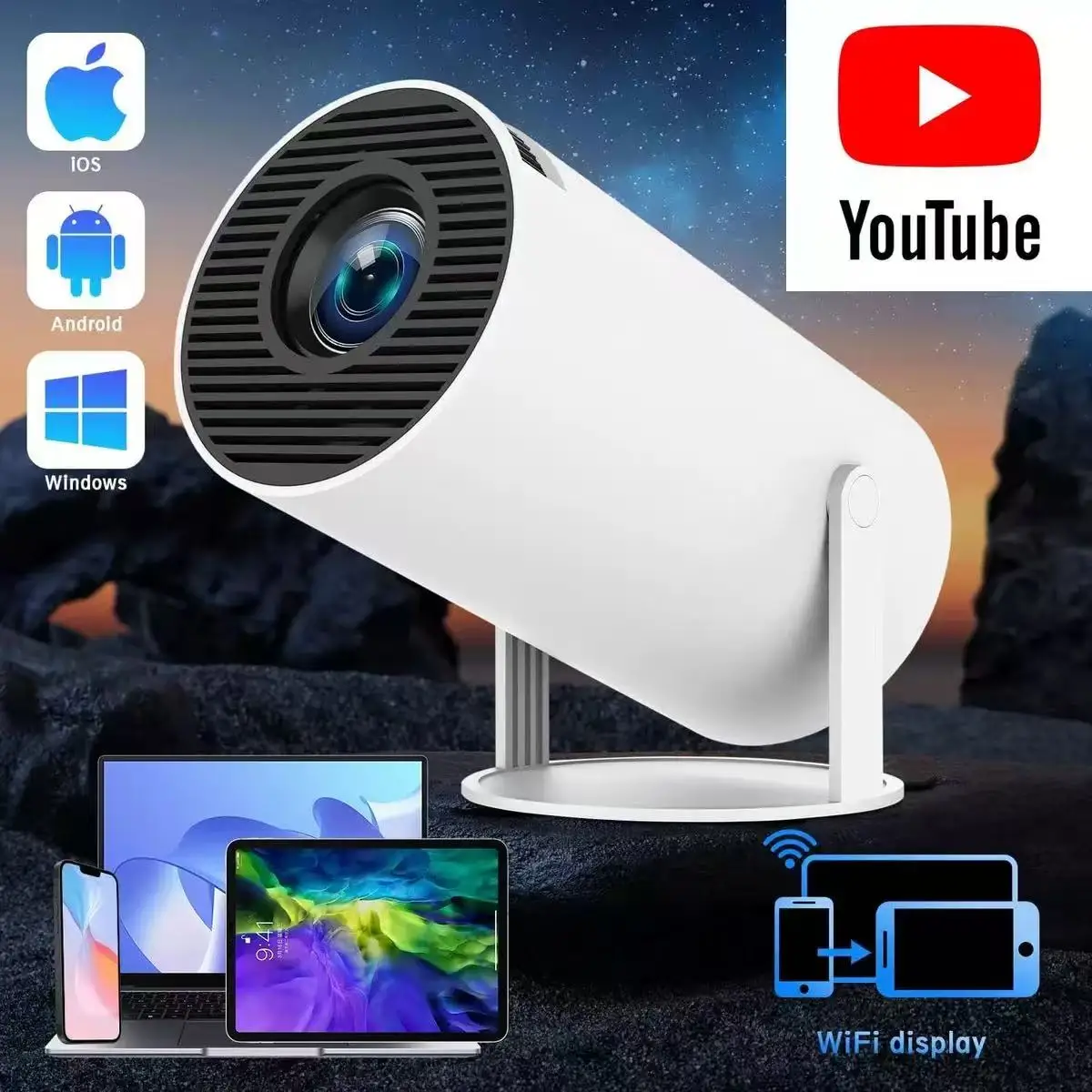

Details
This product is crafted with quality materials to ensure durability and performance. Designed with your convenience in mind, it seamlessly fits into your everyday life.
Shipping & Returns
We strive to process and ship all orders in a timely manner, working diligently to ensure that your items are on their way to you as soon as possible.
We are committed to ensuring a positive shopping experience for all our customers. If for any reason you wish to return an item, we invite you to reach out to our team for assistance, and we will evaluate every return request with care and consideration.
Shop The Full Collection


